
| Link's manager |  |
Such operations include the following:
External Link
When we press the Link's Manager button we will get the dialogue box shown below:
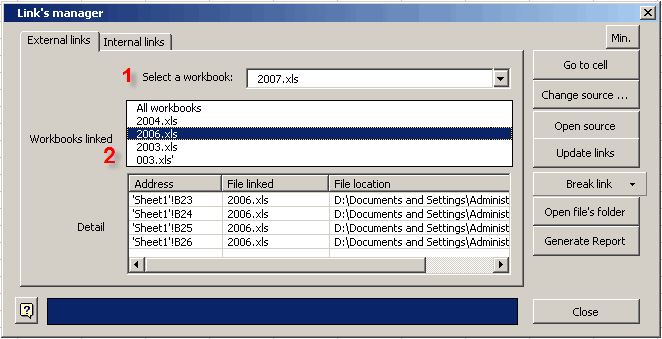
External links can be viewed in the dialogue box. They can be used to perform a series of operations, such as:
Go to cell: This option lets us move to the cell containing the external link.
Change source: Taking this option we can exchange the current external link for a new link to a new workbook.
Open source: This option lets us open the workbook referred to in a given cell.
Update links: It makes it possible to update all links to external files.
Break link: This has three options:
1.- Only the selected link.- It truncates a link with an external file, but only in the case of one specific cell.
2.- All File Links.- It removes all existing links related to a specific workbook.
3.- All External Links.- It removes all existing links to other workbooks.
Open file's folder.- It opens the directory containing the selected external link.
Generate report.- It generates a detailed report of the external links detected, placing it in a new worksheet.
Internal link
This detects all formulas containing links to other worksheets.
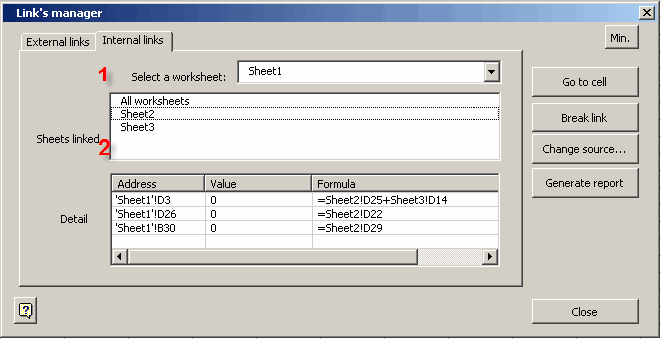
Additionally, we can perform a series of operations, such as:
Go to cell: This makes it possible to move to the cell containing the link to another worksheet.
Break link: It truncates any existing links to another worksheet, but only in the case of the selected cell.
Generate report: It generates a detailed report of all internal links found in the workbook.